Preview the g-code Fusion 360 posted, without opening Fusion
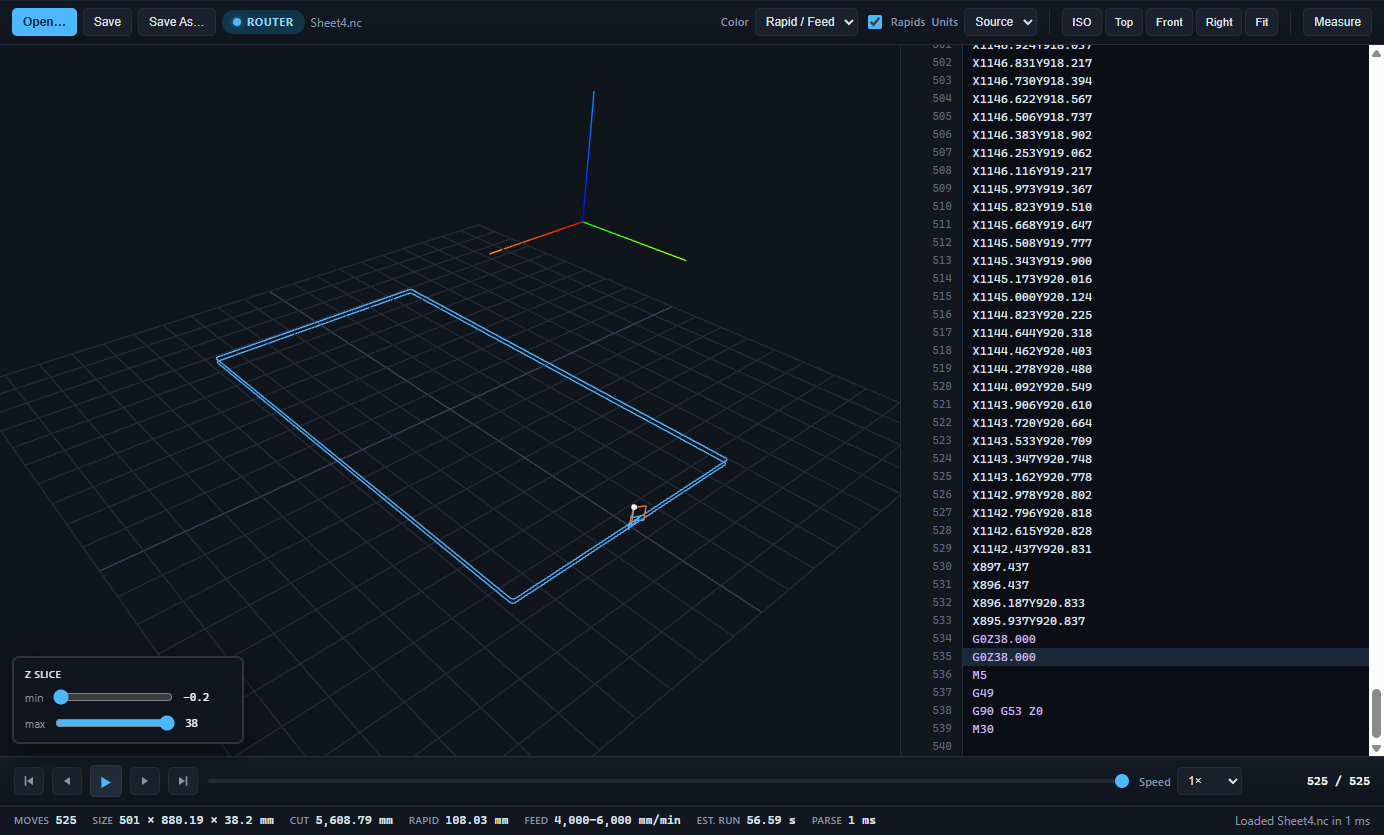
The simulation inside your CAM shows the toolpath it intended. The .nc file is what the machine will actually run, after the post-processor. Toolpath Viewer opens that file and draws it, on the machine PC, with no CAM licence.
Why look at the posted file
- The post may have changed units, arc format, or safe-Z. The file is the truth.
- The machine PC rarely has the CAM installed. A viewer that opens the .nc directly saves a walk back to the office.
- A re-post after a small edit is easy to mix up with the old one. Open both and compare the bounding box and move count.
What it shows for 3-axis g-code
- G0 rapids and G1 cuts in different colours; G2 and G3 arcs drawn as arcs, in both I/J and R form.
- Bounding box in X, Y and Z, so you can check the job fits the stock and the deepest Z is where you expect.
- Feed range and an estimated run time that follows every F word, not one average.
- Colour by Z height to spot a pass that is 2 mm low; colour by feed to spot the block that runs at the wrong speed.
- Click a line to see that move; hover a move to read its line; measure between two points.
Posts it has been used with
Fusion 360 generic and vendor posts, Vectric (VCarve, Aspire), Mach3 and Mach4, GRBL, LinuxCNC, Masso, and most hand-written or converted files with the usual .nc, .tap, .ngc, .cnc or .gcode extensions. It recognises 3D-printer g-code from PrusaSlicer, Cura, Orca and Bambu Studio too, with layers and filament.
Get it
Viewing 3-axis router g-code and 3D-printer g-code is free in Core, for anyone, with no key and no account. Pro opens hotwire and KUKA programs in full, and adds editing with save-back for router, hotwire and KUKA programs.